
Inspect requests and export a HAR
Every request from the Quick Scan, with filters, per-request detail and HAR/CSV export.
- 1
Open Network
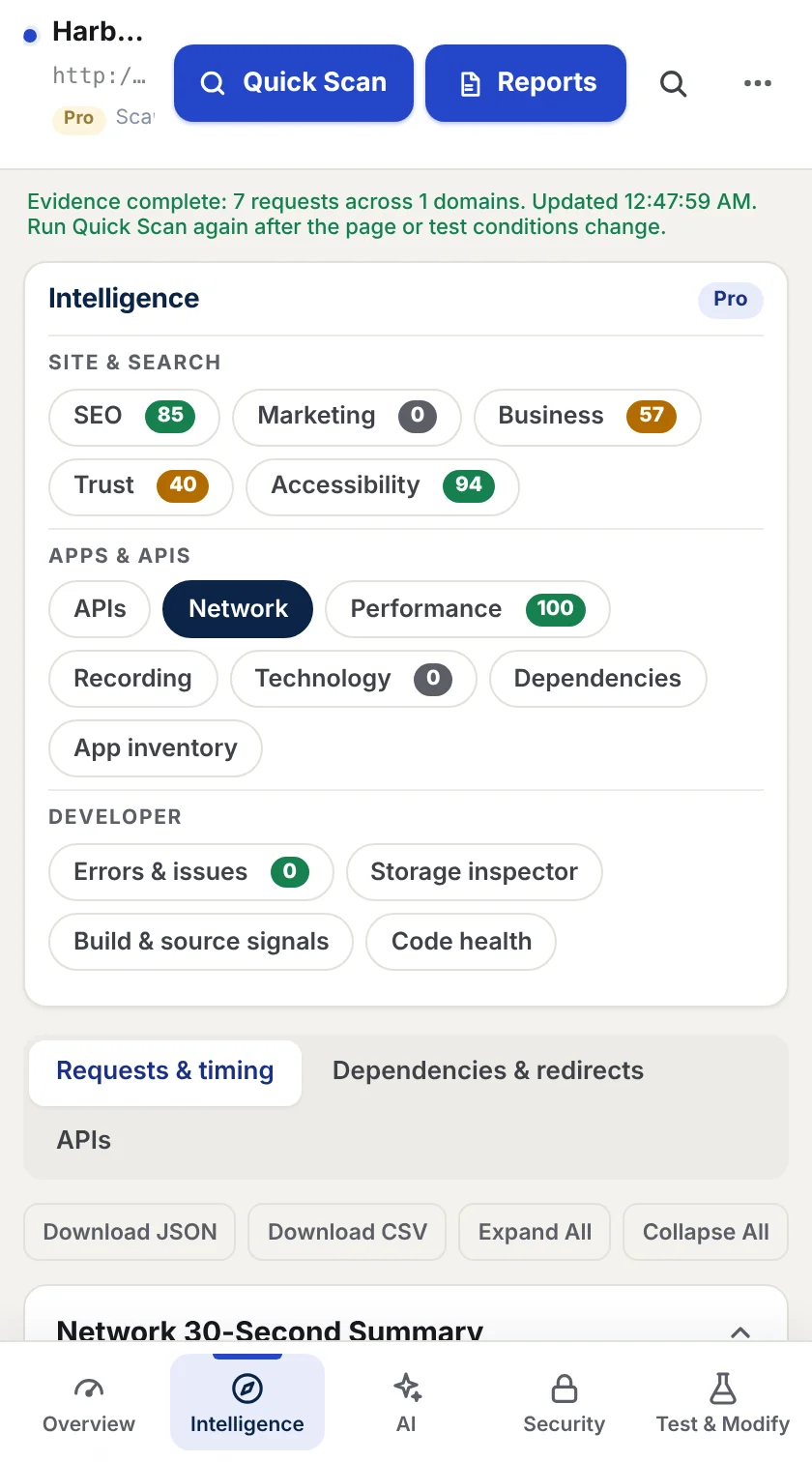
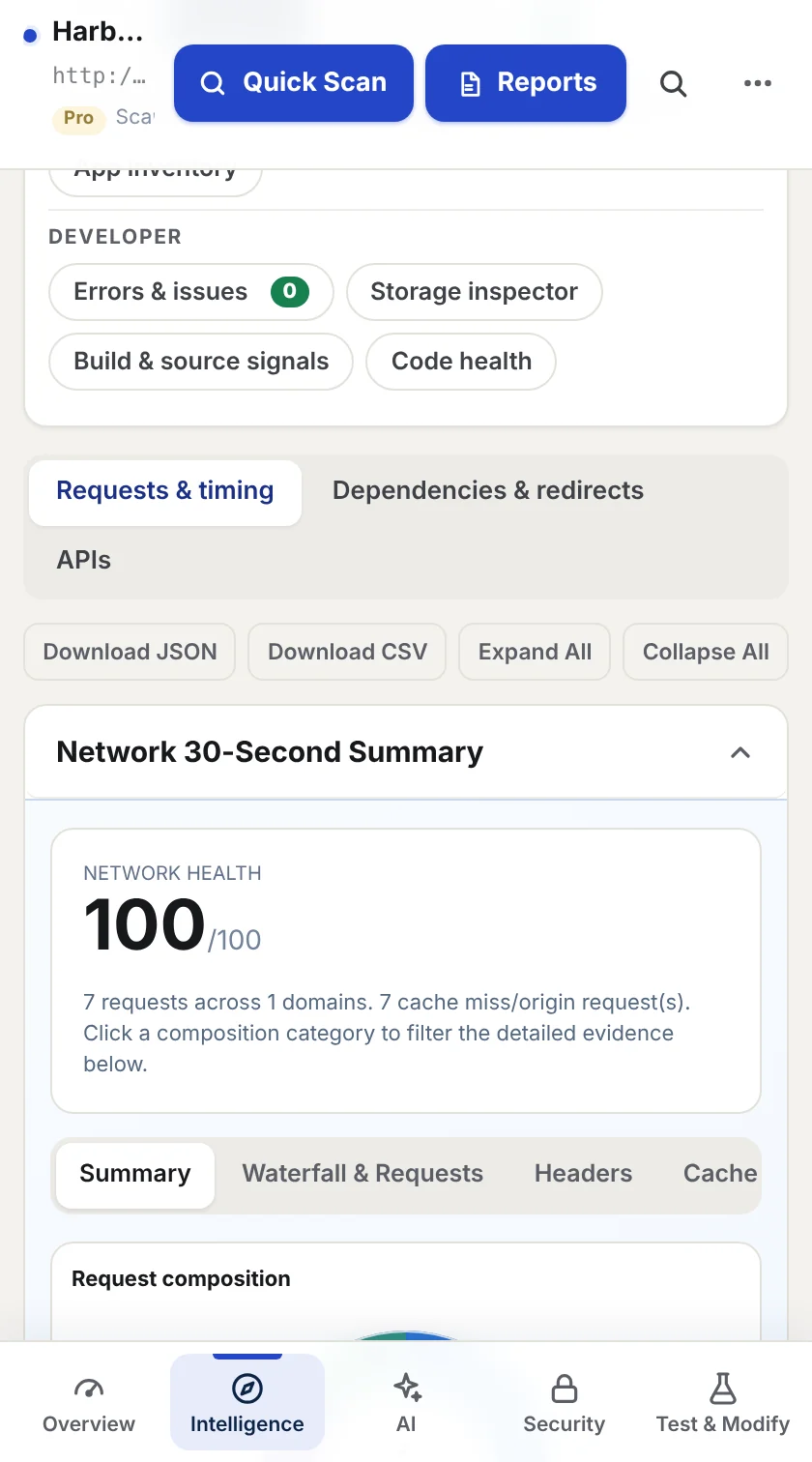
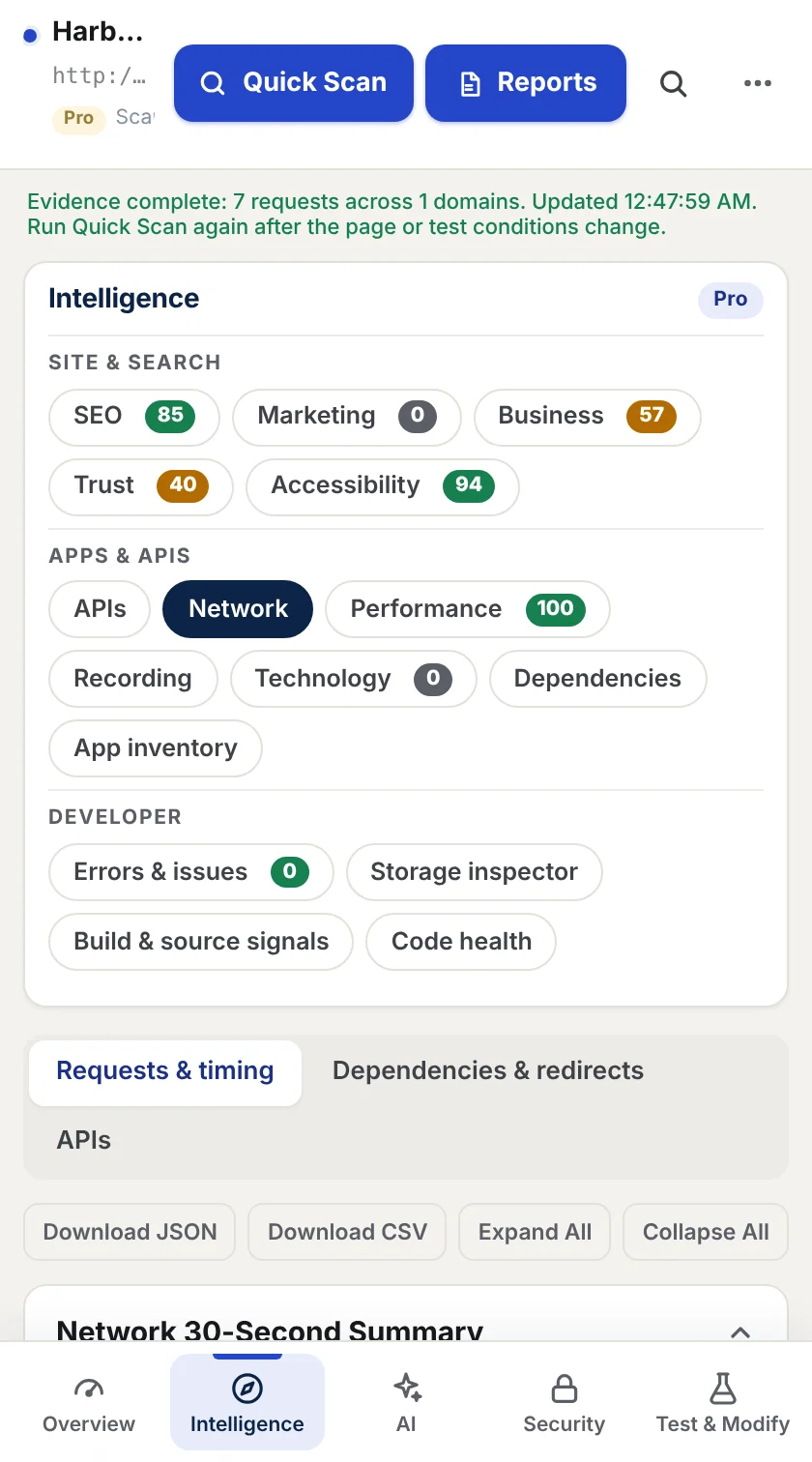
Go to Intelligence → Network and keep Requests & timing selected. The Network 30-second summary gives a health score and failed requests.
- 2
Filter
Type in Filter URL, host, status or type and/or pick a type (Script, Image, …). The line under the filter shows Showing X of Y requests. Clear Filter resets both.
- 3
Jump to headers or cache
The Headers tab opens the main document's response headers. Cache filters to cache misses. Summary and Waterfall & Requests scroll to those parts.
- 4
Open a request
Click any row. The detail panel has Summary, Request Headers, Response Headers, Timing and Security.
- 5
Export
Export Sanitized HAR masks the cookies, tokens and auth headers EPIC recognizes. It can still contain business or personal data, so review it before you share it. Export Full HAR (sensitive) keeps everything, for your own debugging. EPIC asks you to confirm first and names the file as sensitive. Export CSV gives one row per request.
- Redirect hops captured during the scan are included in the HAR.